
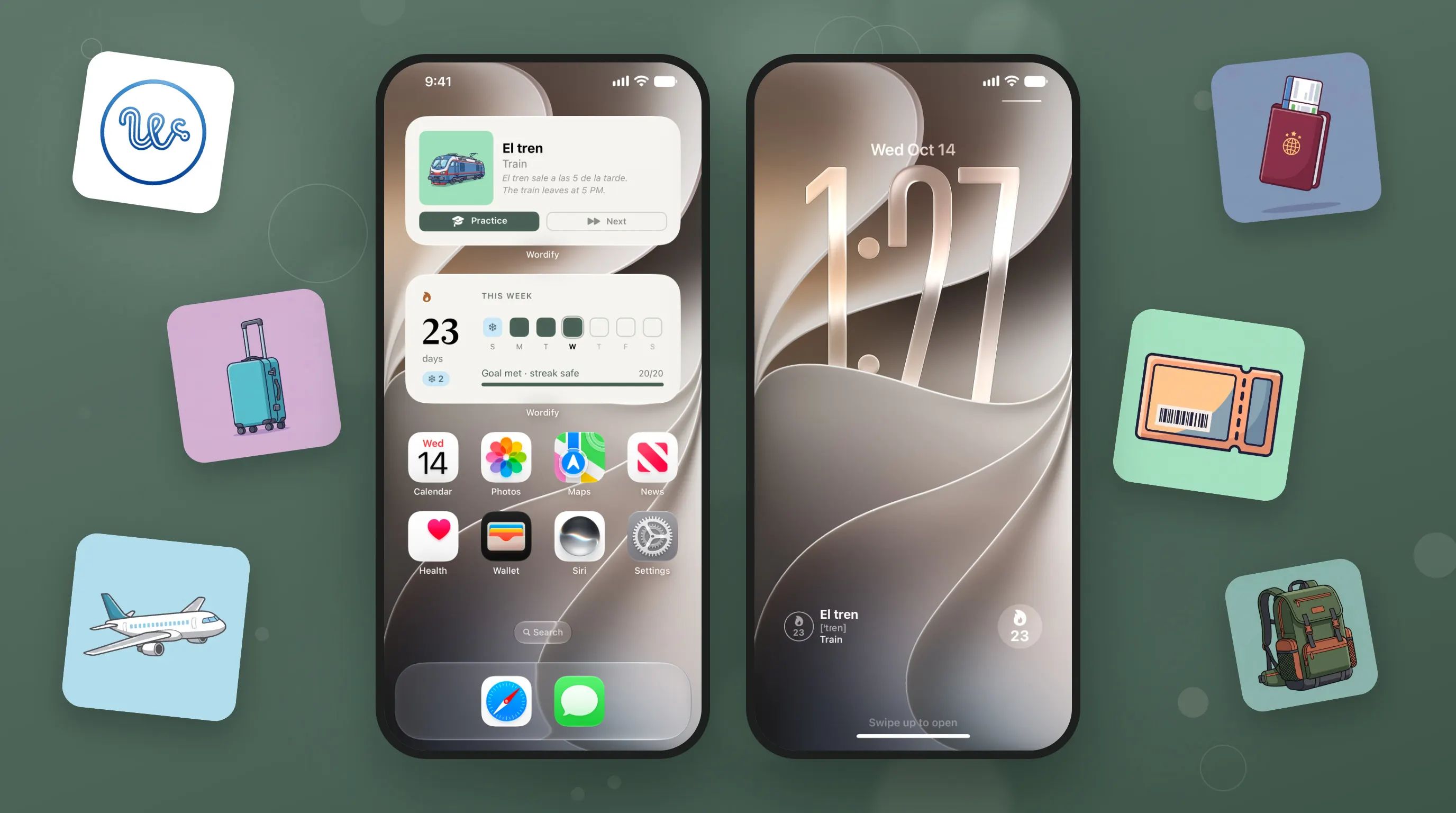
You unlock your phone dozens of times a day, and most of those unlocks land on the same screen: your home screen. It is the most-seen screen you own, and for most people it shows a clock, the weather and a grid of icons.
That screen can teach you a language instead. Not by replacing study, but by turning every glance into a two-second review of a word you are learning. Here is how to set it up on iPhone and Android, and what to look for in a learning widget so it actually works.
Why the home screen works for vocabulary
Vocabulary is a numbers game. You need to meet a word many times, spread out over days, before it sticks. Spaced repetition schedules those meetings for you, but it still relies on you opening an app at the right moment.
A widget flips that around. The word comes to you, on the screen you were going to look at anyway. Each glance is a tiny act of recall: you see "el tren", you think "train", you move on. Two seconds, no app, no session. Over a day that adds up to dozens of exposures you would never schedule on purpose.
There are limits. Seeing a word next to its translation is recognition, not recall, and recall is what builds lasting memory. So a good learning widget does two jobs: it keeps words in front of you, and it gives you a one-tap way into real practice when you have a minute.
What a good learning widget needs
Most "word of the day" widgets show one random word every 24 hours. That is fine for trivia, but it is not how you learn a language. Here is what matters:
- Your words, not random ones. The widget should show words you are actually studying - from the collections you picked or the words you added yourself.
- Frequent rotation. One word a day is too slow. You want to see several words before lunch.
- The translation, the pronunciation and an example. A word on its own is hard to use. An example sentence shows how it lives in a real sentence.
- A way into practice. A button that opens a real session, with the translation hidden, so you can prove you know the word.
- A reason to come back. A streak is a small thing, but seeing your week at a glance is often what gets you to do ten minutes of practice in the evening.
The setup: a word widget and a streak widget
The setup I use myself, and the one I designed Wordify's widgets around, is two medium widgets stacked on the first page of the home screen:
- The word widget on top: the current word with its translation and an example sentence, plus Practice and Next buttons.
- The streak widget below: your streak, this week's days, and how far you are with today's goal.
Two widgets, one glance
A word to learn on top, your week below. The same pair on iPhone and Android.
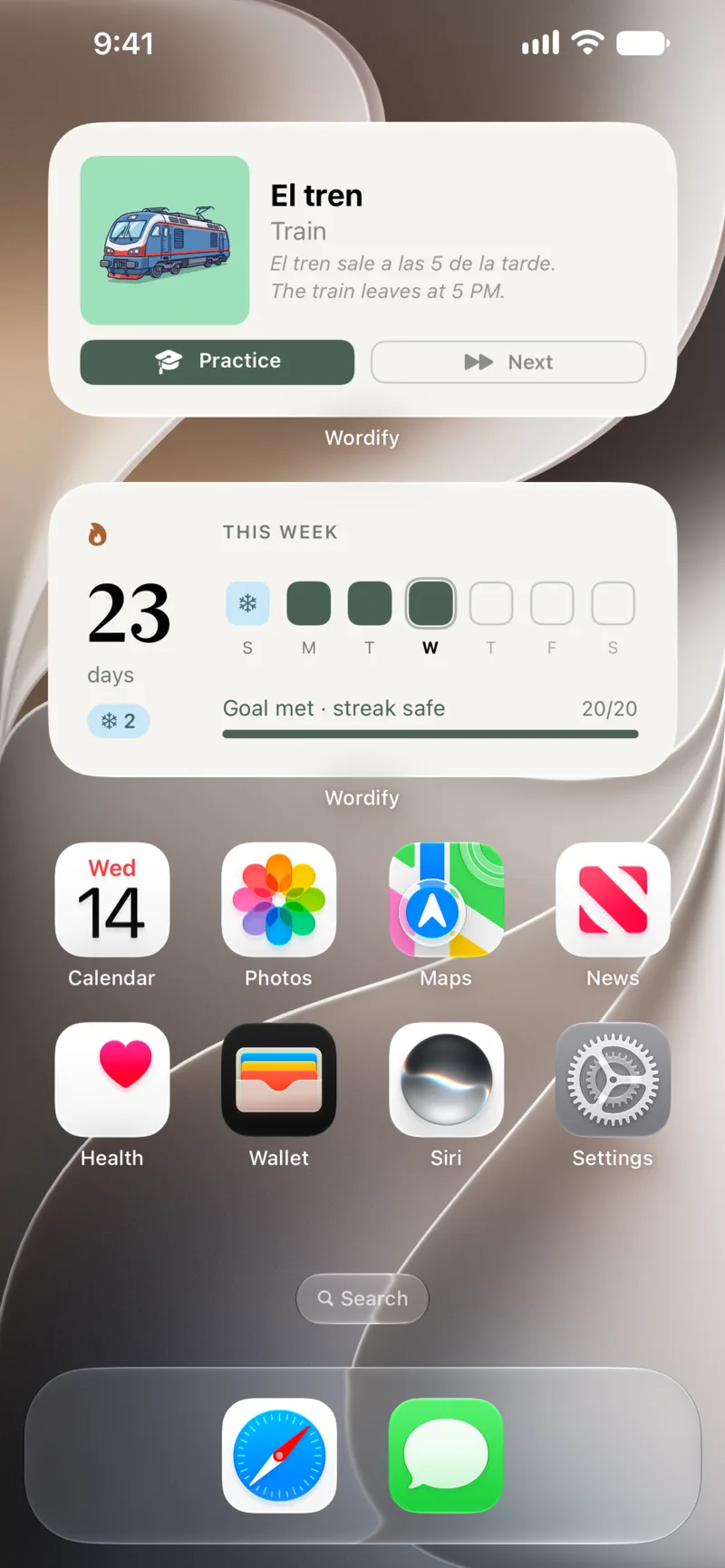
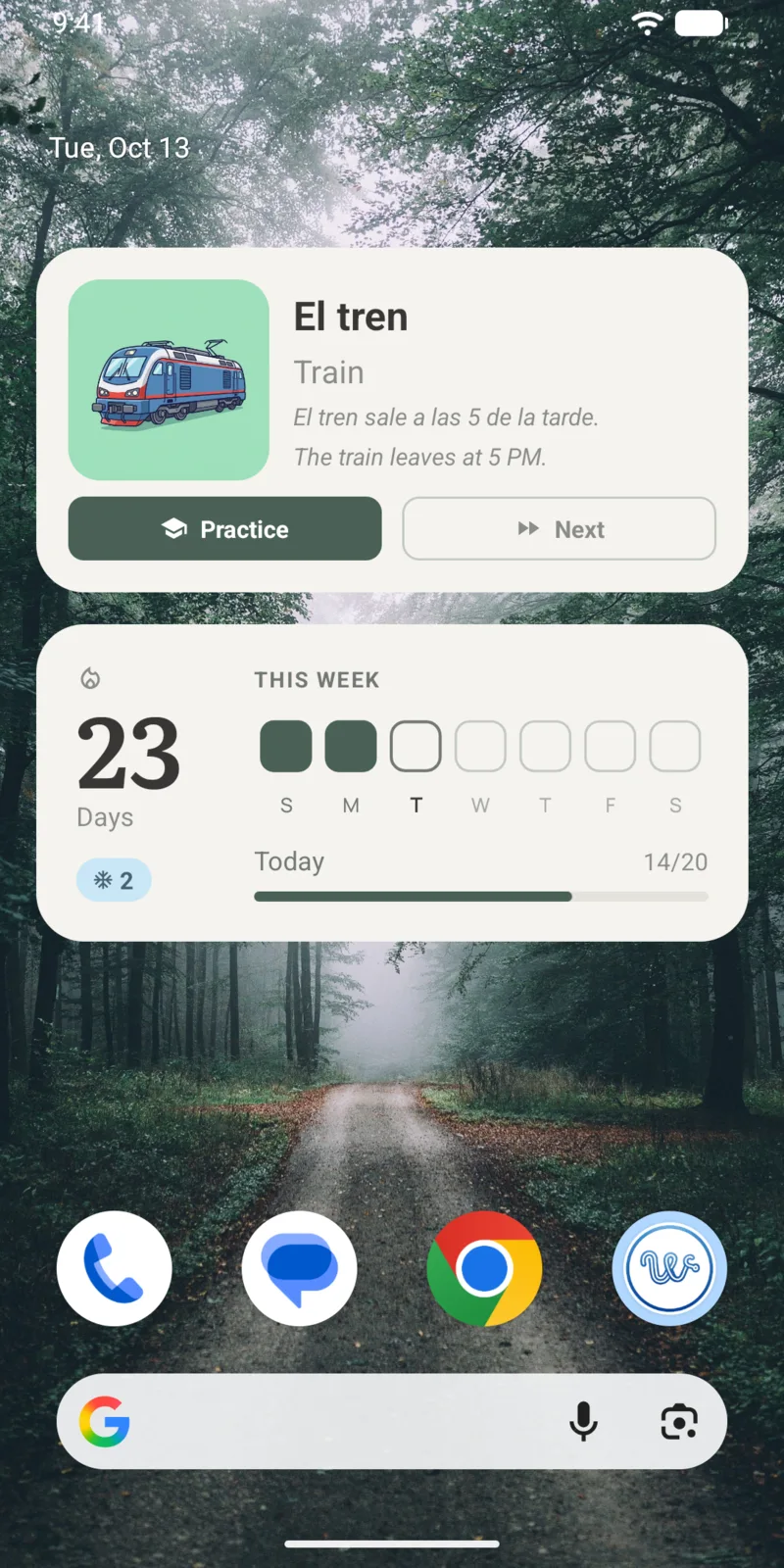
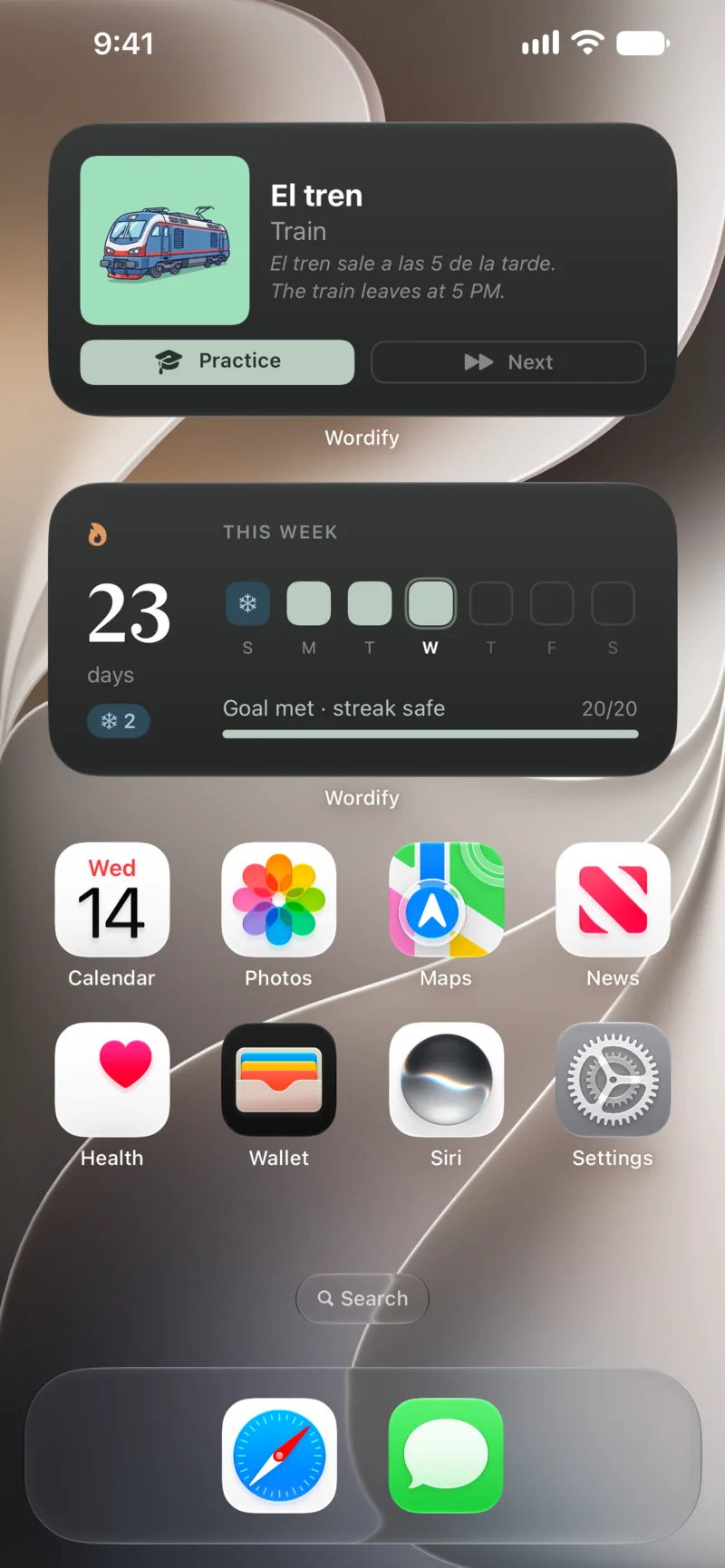
The word widget does the passive part: every time you unlock, you see a word, its translation and how it is used. The streak widget does the motivating part: it shows the days you practiced this week and how many words are left for today.
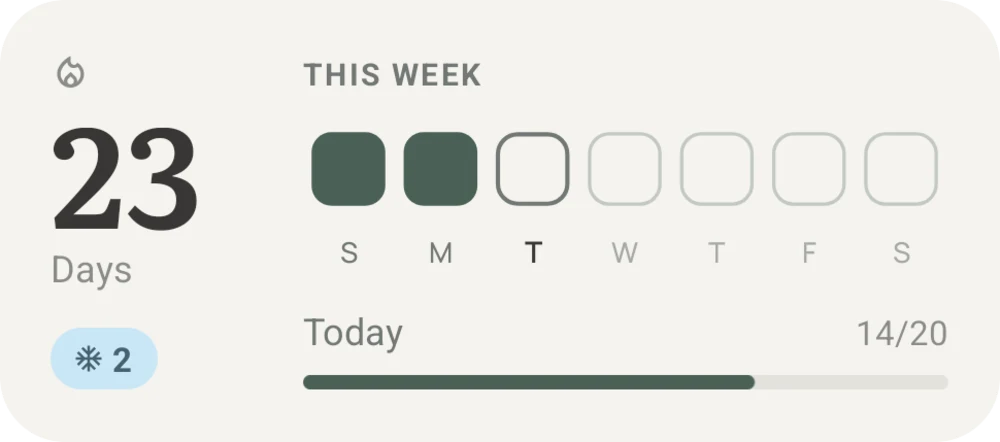
Why both? Because the word widget alone is easy to stop noticing. After a few weeks, your eyes skip over it. The streak widget gives you a small, honest nudge - "6 more words keep your streak" - that turns a glance into ten minutes of practice. If you want the full story of how it works, I wrote about the new streak widget and the daily goal.
Adding the widgets
On iPhone: long-press an empty spot on your home screen, tap Edit, then Add Widget. Search for Wordify, pick the word widget, swipe to the medium size, and tap Add Widget. Do the same for the streak widget and drop it below the first one.
On Android: long-press an empty spot on your home screen and tap Widgets. Find Wordify, then press and hold the word widget and drag it onto your home screen. Do the same for the streak widget.
The full walkthrough, with what to do if a widget stops updating, is in How to add a vocabulary widget to your lock screen. Despite the title, it covers the home screen on both platforms too.
Which size to pick
Both widgets come in more than one size. Here is how I would choose:
- Medium (recommended). The word widget fits the word, its translation, an example sentence and the Practice and Next buttons. The streak widget fits your streak, the whole week and today's goal. This is the size the design was built around.
- Small. Good if your home screen is full. The small word widget shows the picture, the word and the translation; the small streak widget shows your streak and the week. Two small widgets fit side by side in the space of one medium.
- Large word widget. Adds a bigger picture. Nice on an iPad or a quiet home screen, but it takes a whole half of the page.
When space is tight
The small word and streak widgets side by side on Android, taking the space of one medium widget.
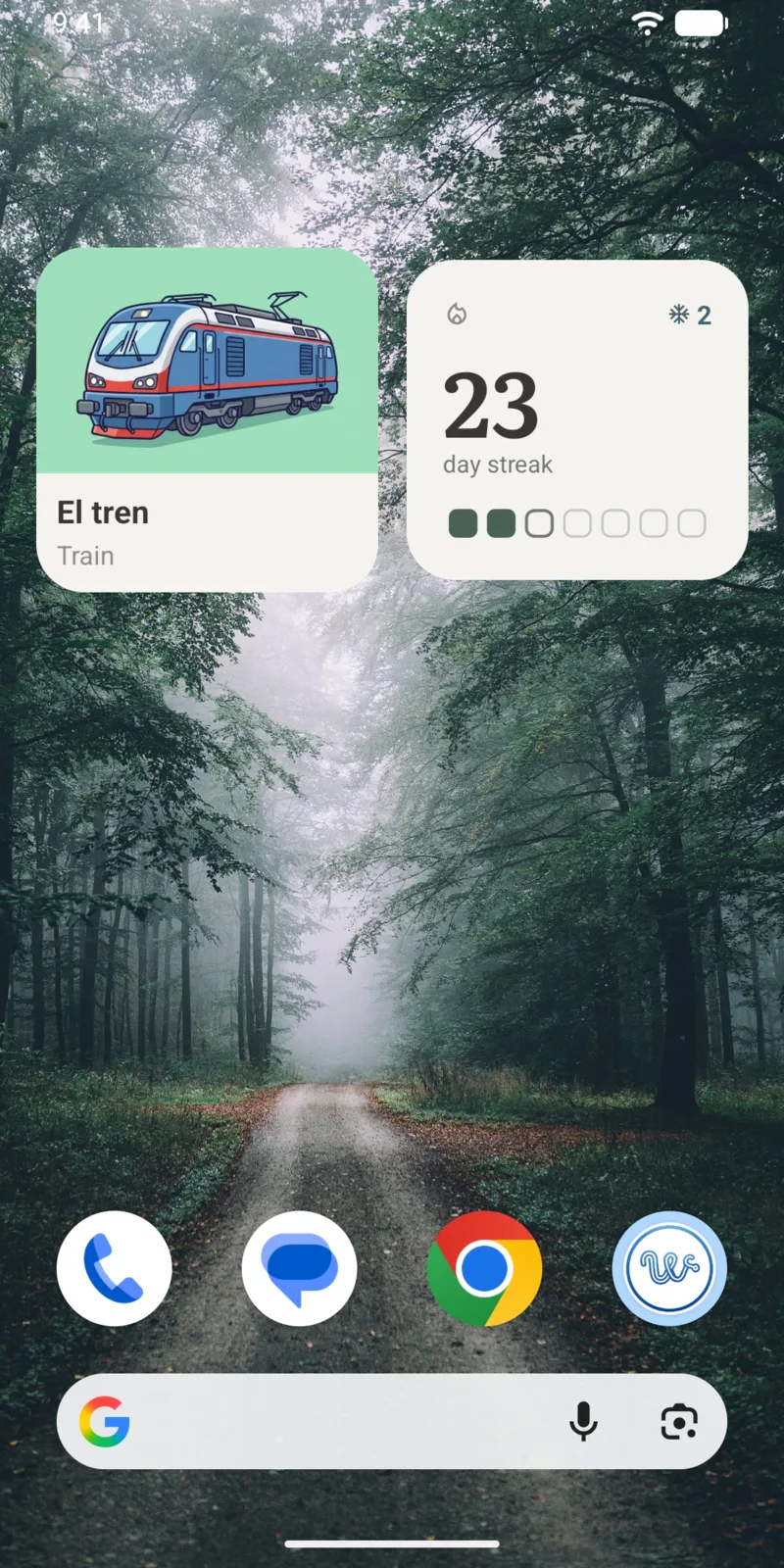
On Android, the streak widget can be stretched horizontally, and it adapts to the width you give it. On iPhone, the sizes are fixed by the system.
Beyond the home screen
The home screen is the best place for vocabulary, but it is not the only one.
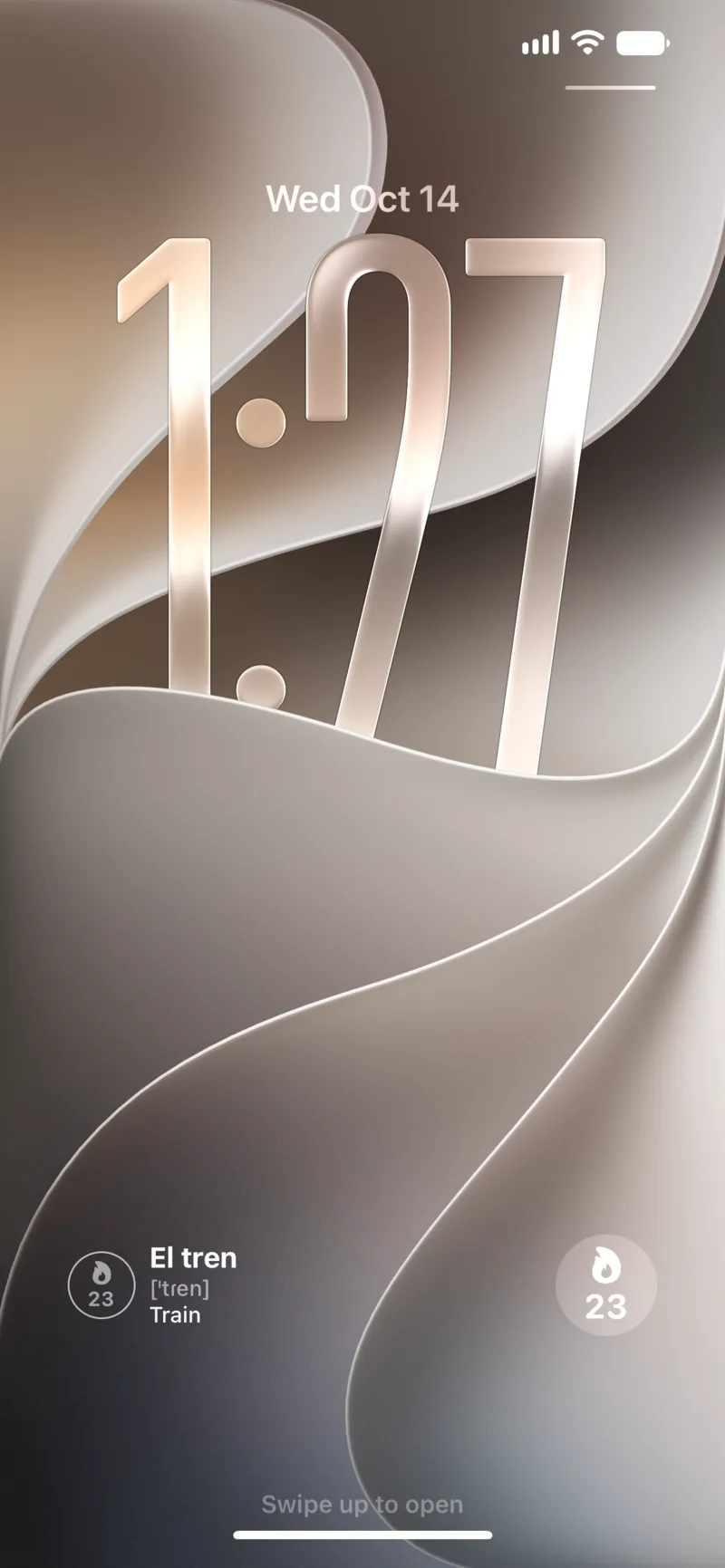
The iPhone lock screen. Since iOS 16 you can add widgets under the clock. Wordify has a word widget for it and a small circle with your streak, so you see a word before you even unlock. The lock screen guide has the exact taps, and Lock screen widgets that actually teach you something compares the apps that do this.
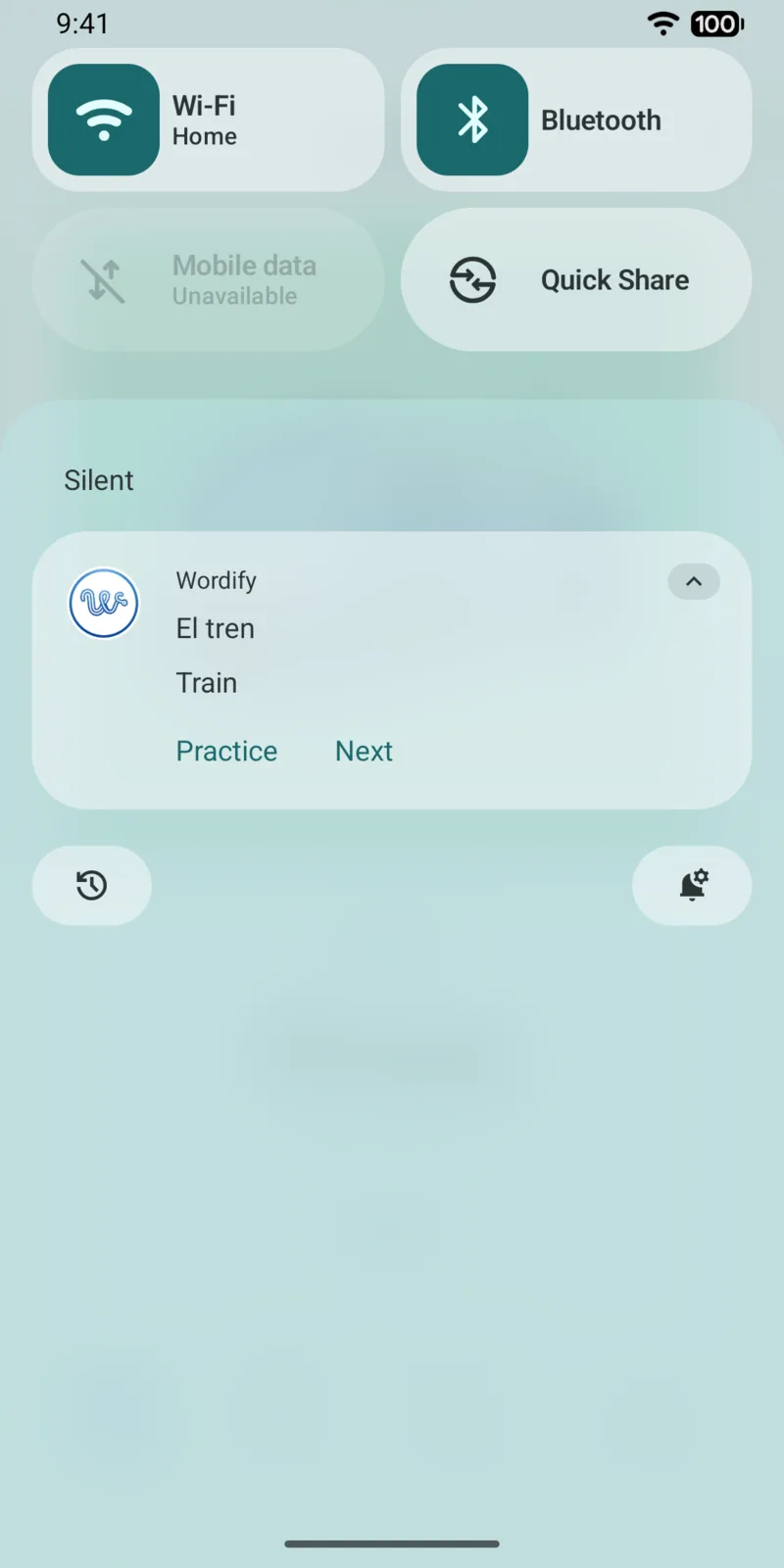
The Android notification shade. Android's lock screen widgets are only now coming back, so Wordify also offers the Ambient Word Feed: a silent, persistent notification with your current word and Practice and Next buttons. You see it every time you pull down the shade.
The second surfaces
A word and your streak on the iPhone lock screen; a silent word notification on Android.
How often the word changes
On the free tier, the word changes every hour. With Premium you choose the interval: as often as every 5 minutes on Android, or every 15 minutes on iPhone, where the system limits how often widgets can refresh. You can also tap Next on the widget whenever you want a new word.
Which words show up is not random. The widget draws from the words you are learning - collections you saved and words you added yourself - and leaves out the ones you have already learned.
Quick answers
Can a home screen widget really help you learn words?
Yes, if it shows words you are studying and changes them often. Every unlock becomes a short, free review: you see the word, try to recall it, and move on. It won't replace practice, but it adds dozens of quick exposures a day that you'd never schedule on purpose.
What is the best widget size for learning vocabulary?
Medium. On iPhone and Android it fits the word, its translation, an example sentence and a Practice button, while the small size fits only the word and translation. A good setup is a medium word widget with a medium streak widget below it.
How often should a vocabulary widget change the word?
Often enough that you see several words a day, not one. Wordify's widget rotates every hour on the free tier, and as often as every 5 minutes on Android or every 15 minutes on iPhone with Premium.
See also:
Try the app
Vocabulary that comes to you
Through home screen widgets, lock screen widgets, and notifications. 7-day free trial. No account needed.