
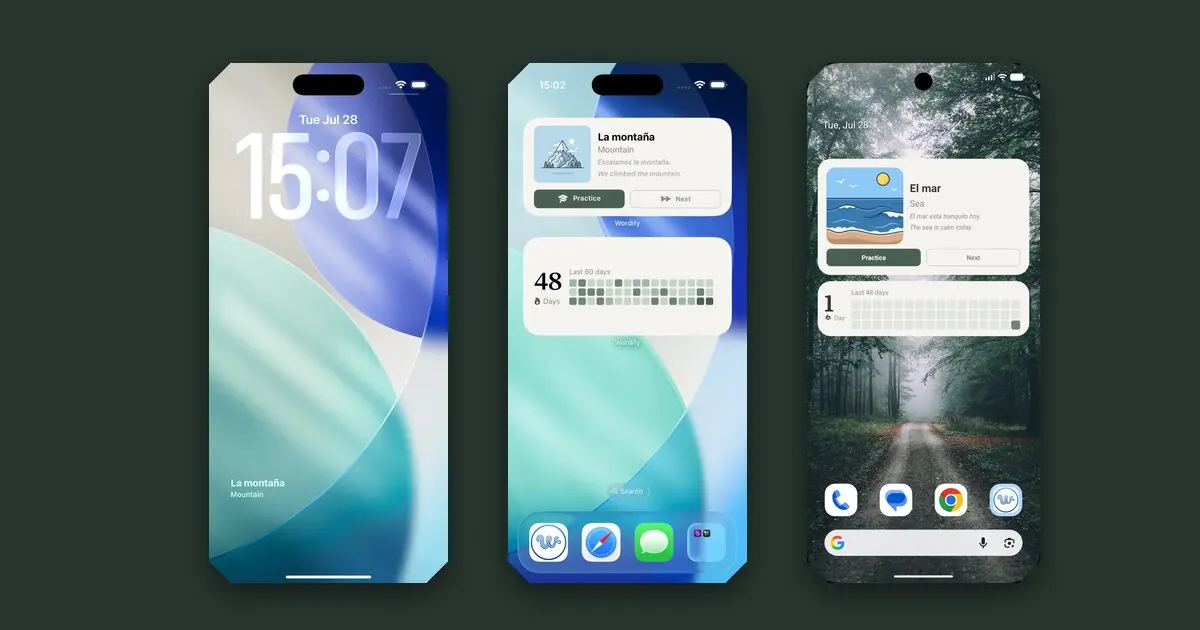
You check your phone dozens of times a day. Almost every one of those glances gives you a clock and a battery percentage, and then you put the phone back down.
A widget is how you turn a few of those glances into vocabulary. Not a study session - just a word sitting where your eyes already land, often enough that it starts to stick. This is the practical version of that setup: the exact taps on both platforms, what each widget size gives you, and the two or three things that go wrong.
What you end up with
A word under the clock on iPhone, a card on either home screen. Same idea in three places.
iPhone: the lock screen widget
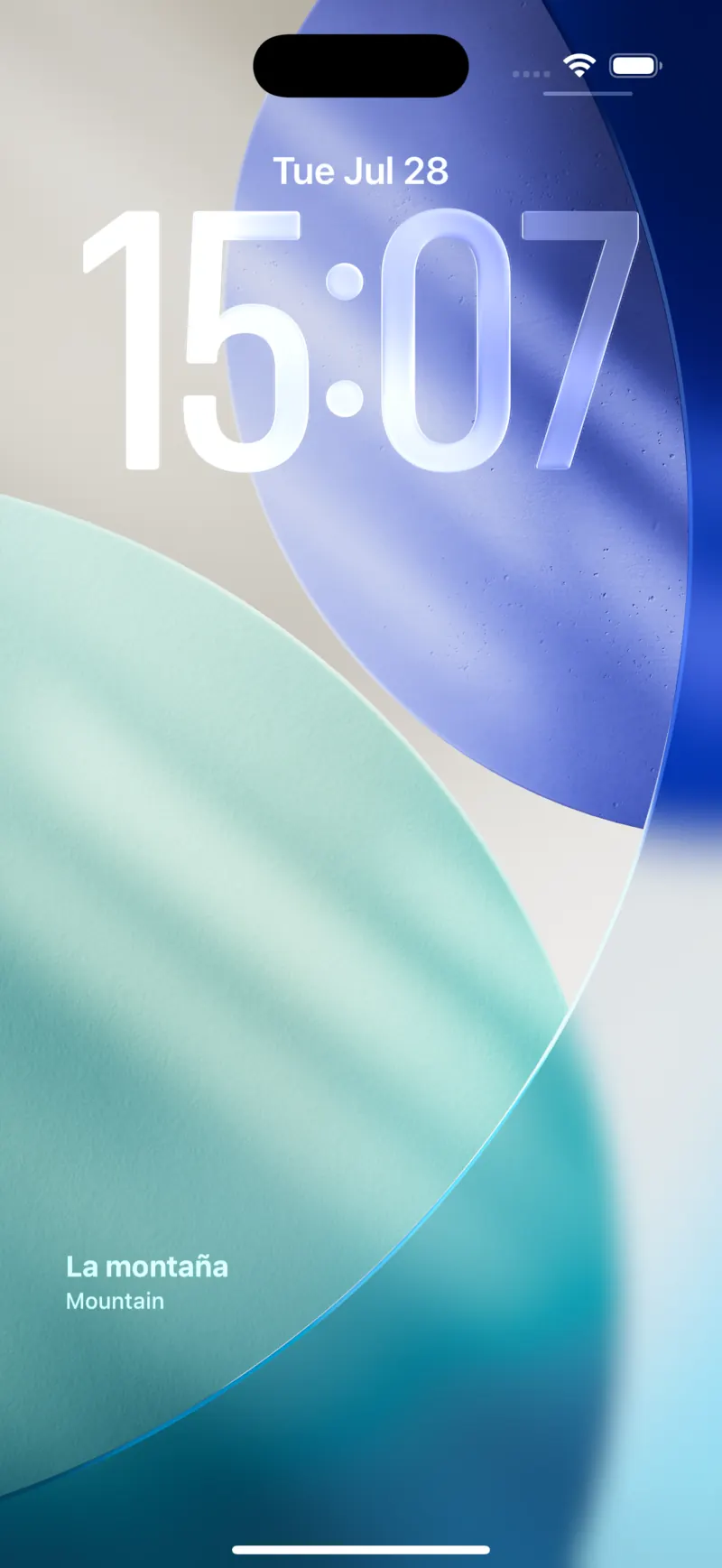
Lock screen widgets need iOS 16 or later. The one detail people miss: your phone has to be unlocked before it will let you edit the lock screen, so unlock it first and stay on the lock screen instead of swiping through to the home screen.
- Touch and hold anywhere on the lock screen until the wallpaper shrinks and a Customize button appears at the bottom.
- Tap Customize, then tap Lock Screen (the left-hand preview).
- Tap the rectangular widget area just below the clock. The widget picker slides up.
- Scroll to Wordify in the app list and tap it, then tap the widget to drop it into the row.
- Swipe down to close the widget list, then tap Done in the top right.
That's it. The widget shows your current word with its translation, and it changes on its own through the day - no need to open the app to refresh it.
Two things worth knowing. The row under the clock holds a limited number of small widgets, so if it looks full, remove something first by tapping the widget area and hitting the minus badge. And if you have several lock screens set up (iOS lets you keep a few and switch between them), the widget only lands on the one you edited.
iPhone: the home screen widget
The home screen has much more room, so this is where the bigger layouts live.
- Touch and hold an empty part of the home screen until the icons start to jiggle.
- Tap the + button in the top left corner.
- Search for Wordify.
- Swipe between the sizes, then tap Add Widget on the one you want.
- Drag it where you want it and tap Done.
Pick a size
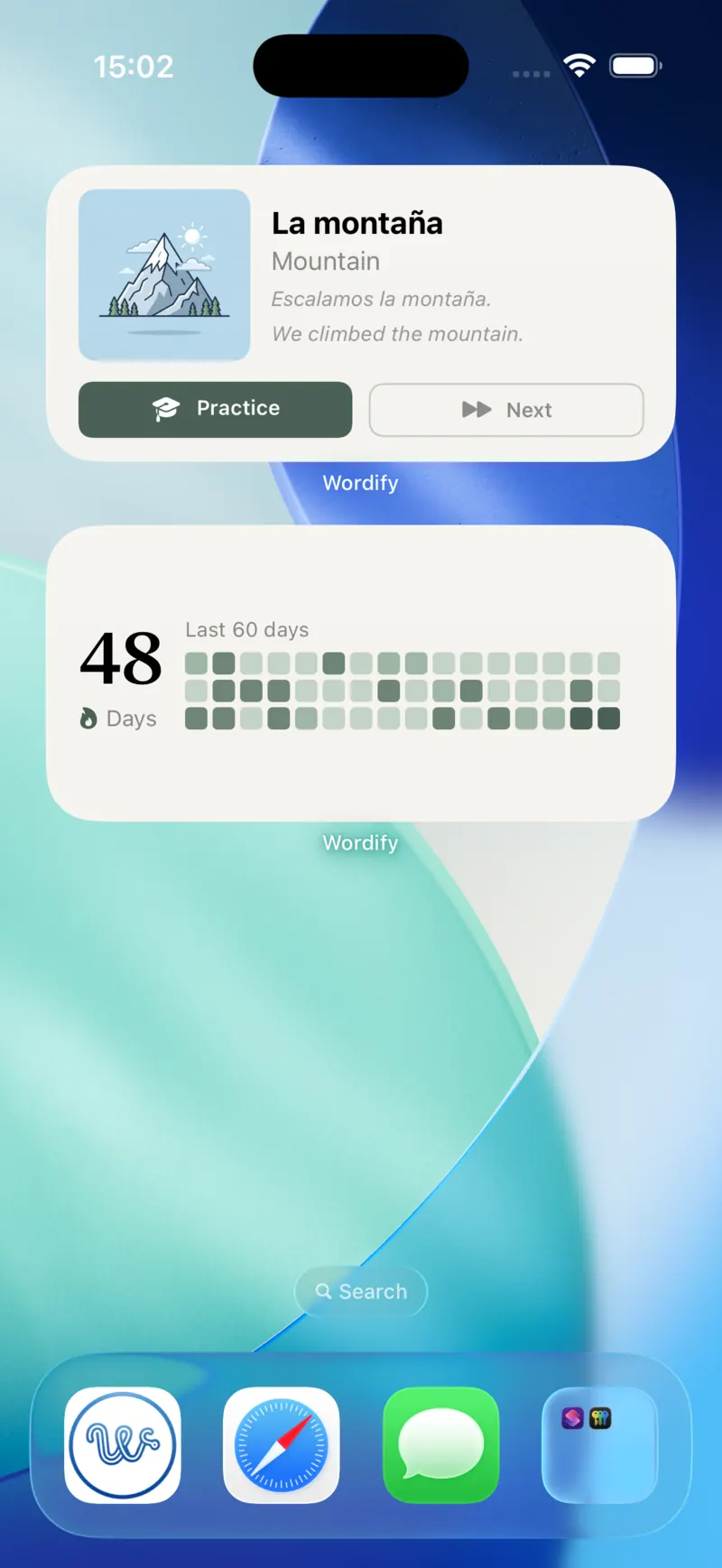
Small fits the word and translation. Medium adds the picture and the buttons.
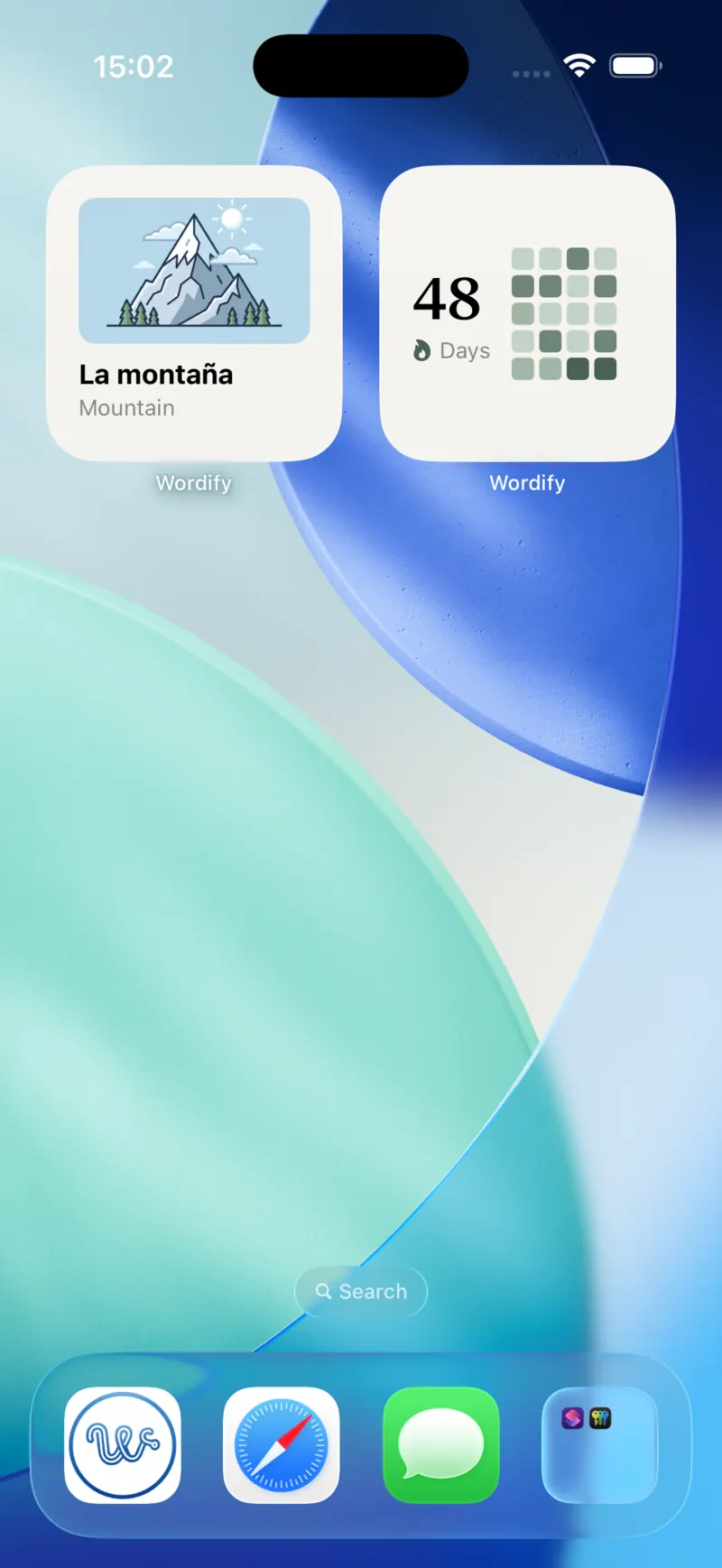
On iOS 17 and later the buttons on the widget are live: Practice opens a practice session with the translation hidden, and Next moves you to another word without leaving the home screen.
Android: the home screen widget
- Long-press an empty part of the home screen.
- Tap Widgets in the tray that appears at the bottom.
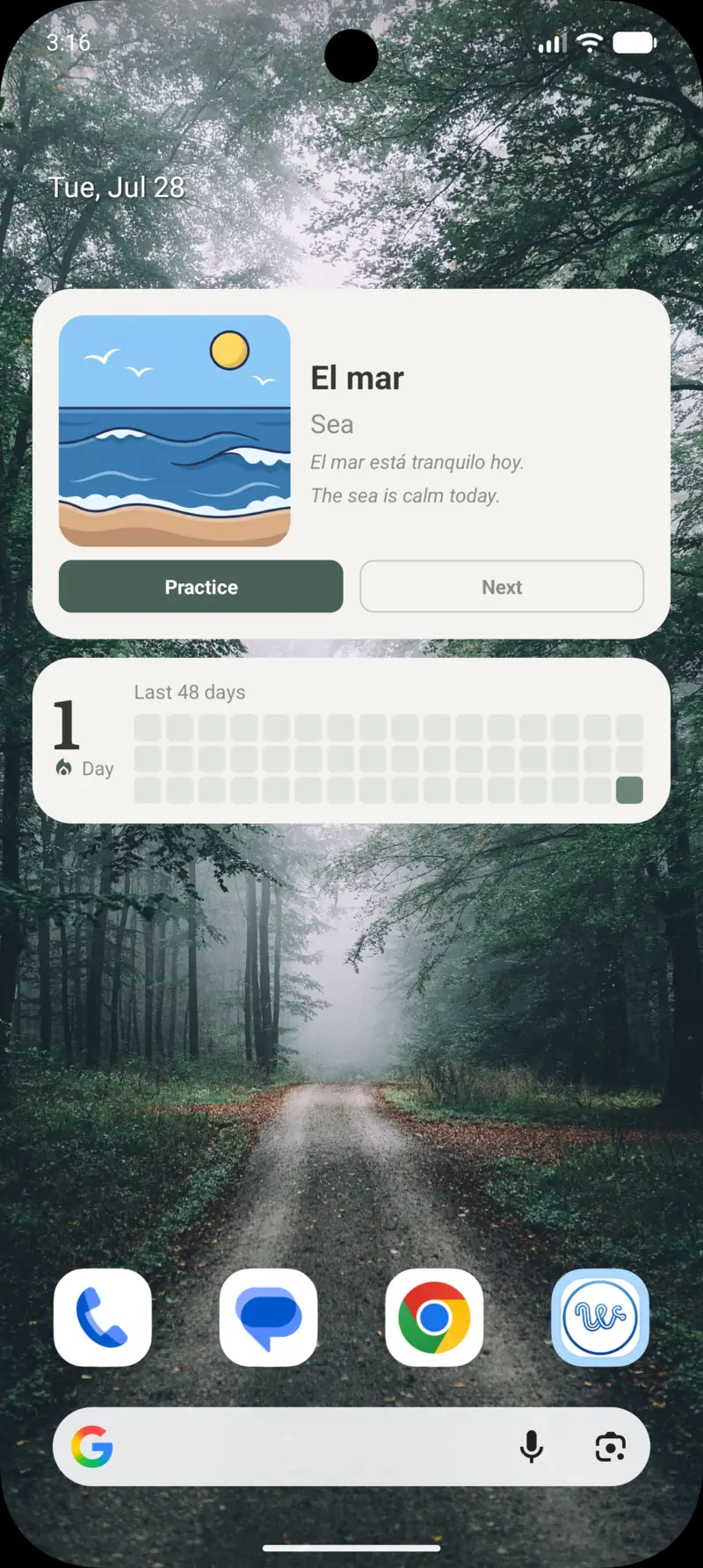
- Scroll to Wordify. You will see a preview of each widget - on Android 15 and newer the preview is generated from your own words, so what you see is what you get.
- Long-press the widget you want and drag it onto the screen, or just tap it on newer launchers.
- While it is still selected, drag the handles to resize it.
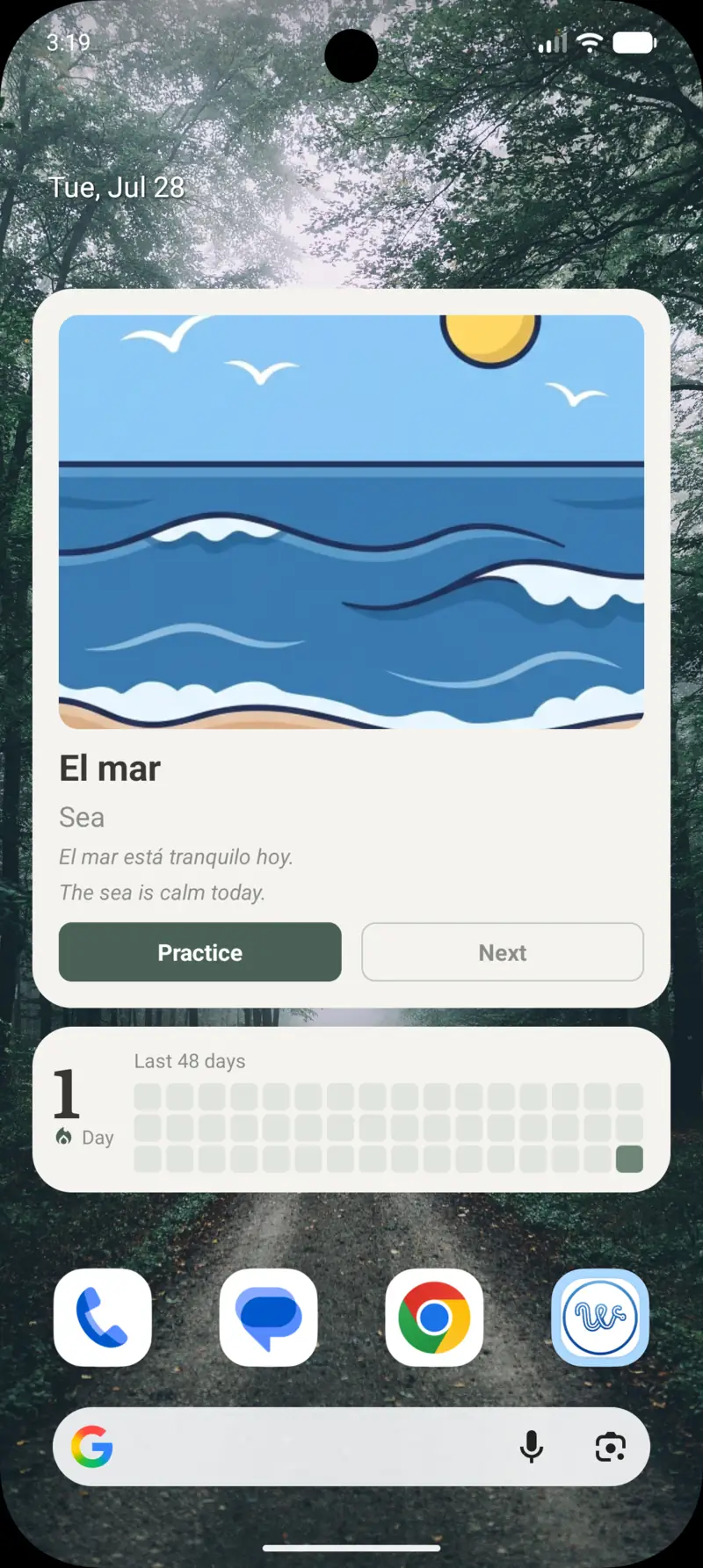
The word widget comes in three sizes, and resizing genuinely changes what you see rather than just scaling it up: the compact version keeps to the word and its translation, and the taller ones add the illustration and the example sentence.
Launchers differ more than they should here. Samsung's One UI puts widgets behind a long-press then Widgets, Pixel launcher the same, but a few third-party launchers hide the widget tray in their own settings menu. If Widgets is not in the long-press menu, look for it in your launcher's settings.
Android: what about the lock screen?
Here is the honest answer: Android phones do not let third-party apps put widgets on the lock screen. That capability comes and goes across versions and it has never been generally available to apps on phones, so no vocabulary app can offer it, whatever the screenshots in a store listing suggest.
What works instead is the notification shade. Wordify keeps your current word in an ongoing notification, and because notifications appear on the lock screen, the effect is close to the same: you pick up the phone, and the word is there before you have unlocked anything. It is available on the free tier, and on Android you can mark a word as learned straight from the notification.
If you would rather not have it in your shade, turning it off is a switch in Settings - but it is the single most effective surface on Android, so try it for a week before you decide.
How often does the word change?
More often than "word of the day", if you want it to.
Words rotate on a schedule rather than once every 24 hours. On the free tier the shortest interval is one hour. With Premium you can go down to five minutes on Android, or fifteen on the iOS widget - iOS decides exactly when a widget refreshes, so treat that number as a floor rather than a promise.
There is no wrong setting here. A long interval means each word gets more of your attention; a short one means more words pass by. An hour is a sensible starting point.
If what you're after is the classic one-word-a-day setup, I wrote a shorter guide on how to put a word of the day on your lock screen.
If the widget stops updating
Three causes, in the order they usually turn out to be true.
Battery optimization (Android). If the system has decided Wordify is a background app it can freeze, the widget quietly stops rotating. Open your system settings, find Wordify under Apps, and set battery usage to unrestricted.
The rotation interval is longer than you think. A widget that looks stuck at four in the afternoon may simply be on a three-hour schedule. Check the interval in Settings before assuming anything is broken.
iOS is rationing refreshes. iOS gives every widget a daily budget of background updates and spends it based on how much you actually look at the widget. A widget on a screen you rarely open gets refreshed less. Tapping through to the app occasionally is enough to keep it in good standing.
The other widget: your streak
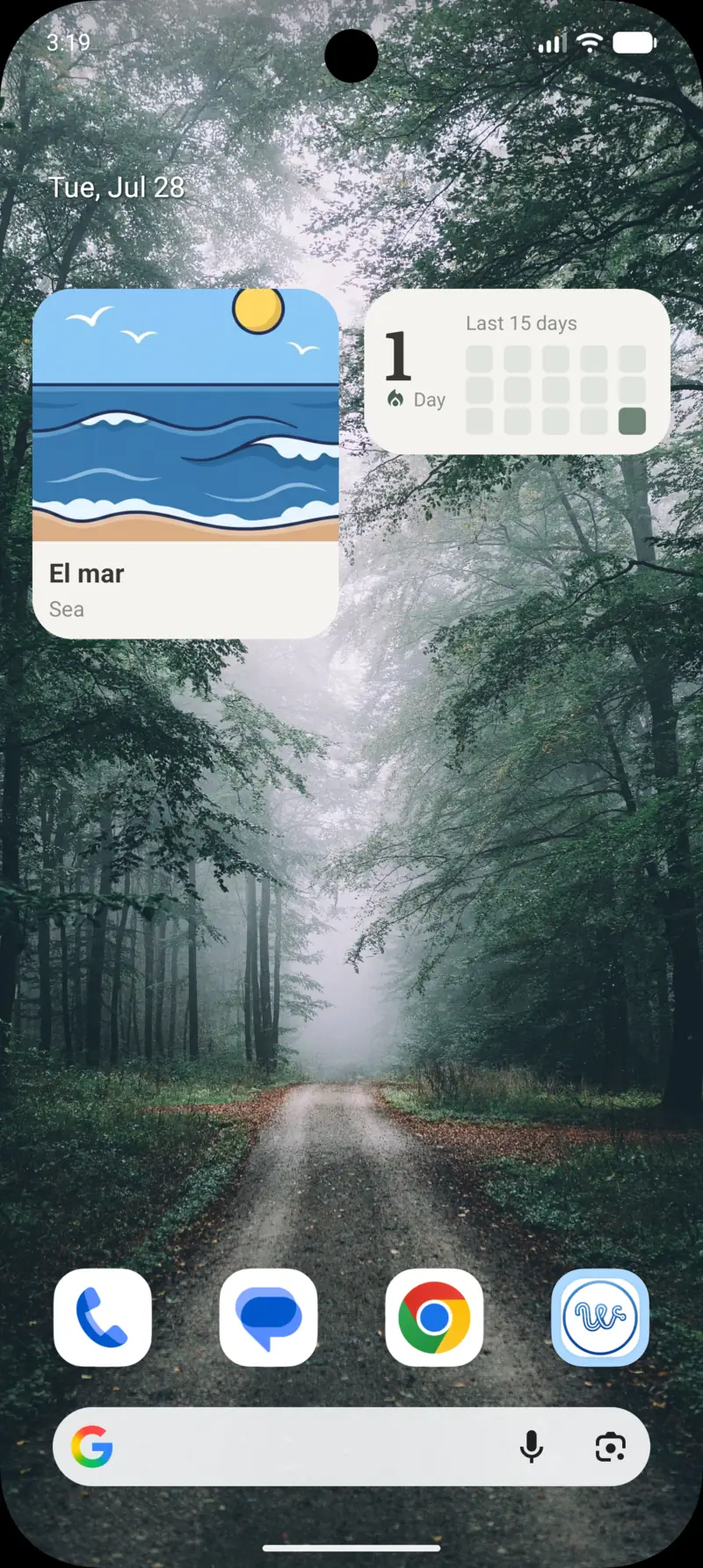
Alongside the word widget there is a second type: a streak widget with a heatmap of your recent practice. It is added exactly the same way - widget picker, pick the size, drop it on the screen.
It is worth a slot next to the word widget for one reason. The word widget shows you vocabulary; the streak widget shows you whether the habit is real. Widen it and it shows more days of history rather than bigger squares, which is a small design decision I wrote about separately.
Two minutes, then nothing
The whole point of this setup is that it is the last effort it asks of you. Once the widget is on the screen, learning happens through glances you were already going to spend - no session to start, no streak nagging you to open an app.
Set it up, then forget it is there. In a few weeks you will recognize words you have no memory of studying.
See also:
- How to put a word of the day on your lock screen - the quick version for iPhone and Android, and why a rotating word beats one word a day.
- Lock screen widgets that actually teach you something - an honest roundup of the widget-based learning apps worth considering.
- 10 best Duolingo alternatives in 2026 - if you are still choosing an app before setting any of this up.
- How spaced repetition actually works - what decides which word the widget shows you next.
Try the app
Vocabulary that comes to you
Through home screen widgets, lock screen widgets, and notifications. 7-day free trial. No account needed.