
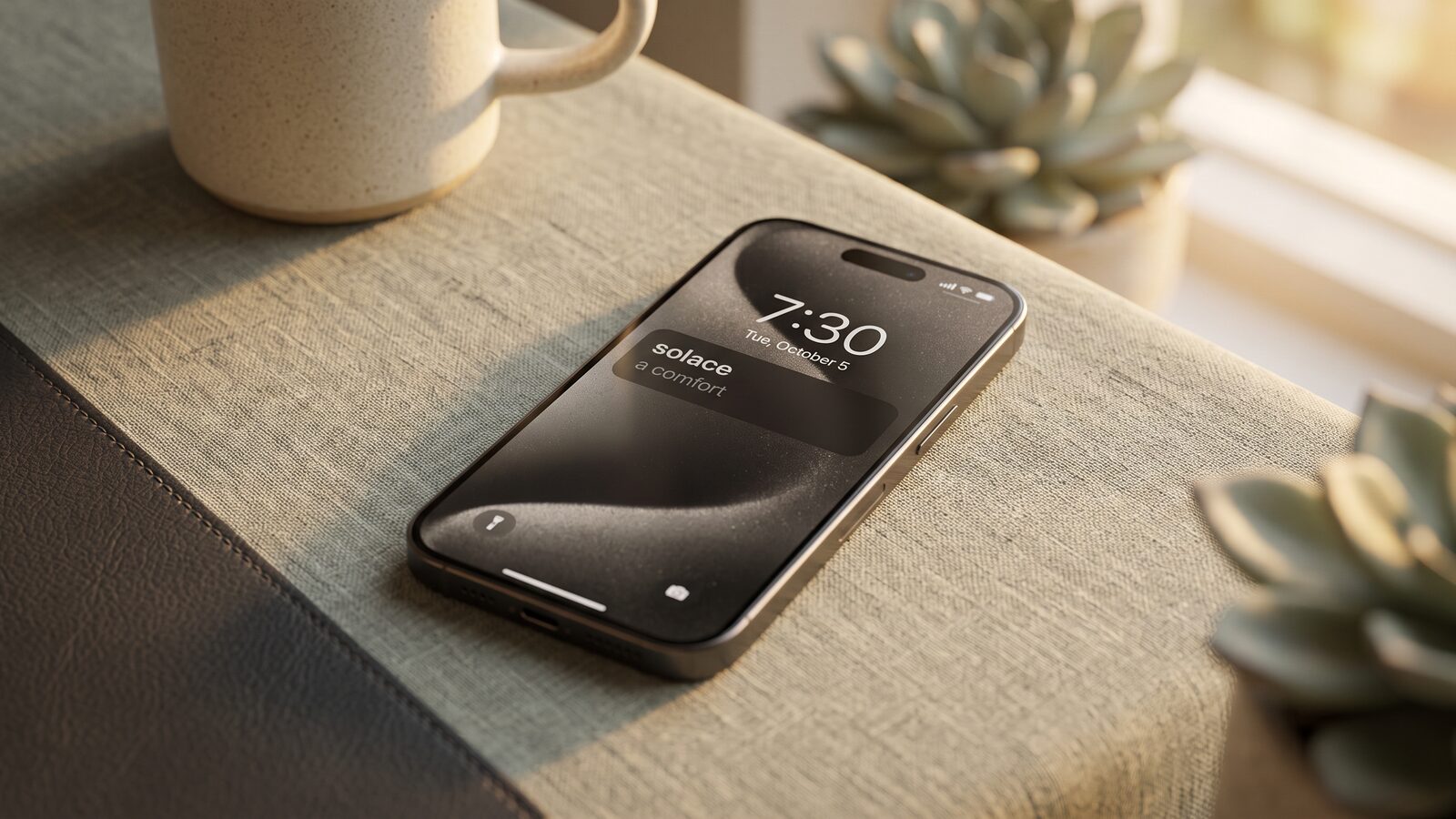
A word of the day is one of the oldest ideas in language learning, and the lock screen is the best place it's ever had. You look at that screen dozens of times a day anyway; if a word is sitting there, you learn it without deciding to study. No app to open, no streak to maintain, no willpower involved.
Here's how to set it up on iPhone, the honest situation on Android, and what to look for when picking the app that feeds the widget.
iPhone: add a word widget to the lock screen
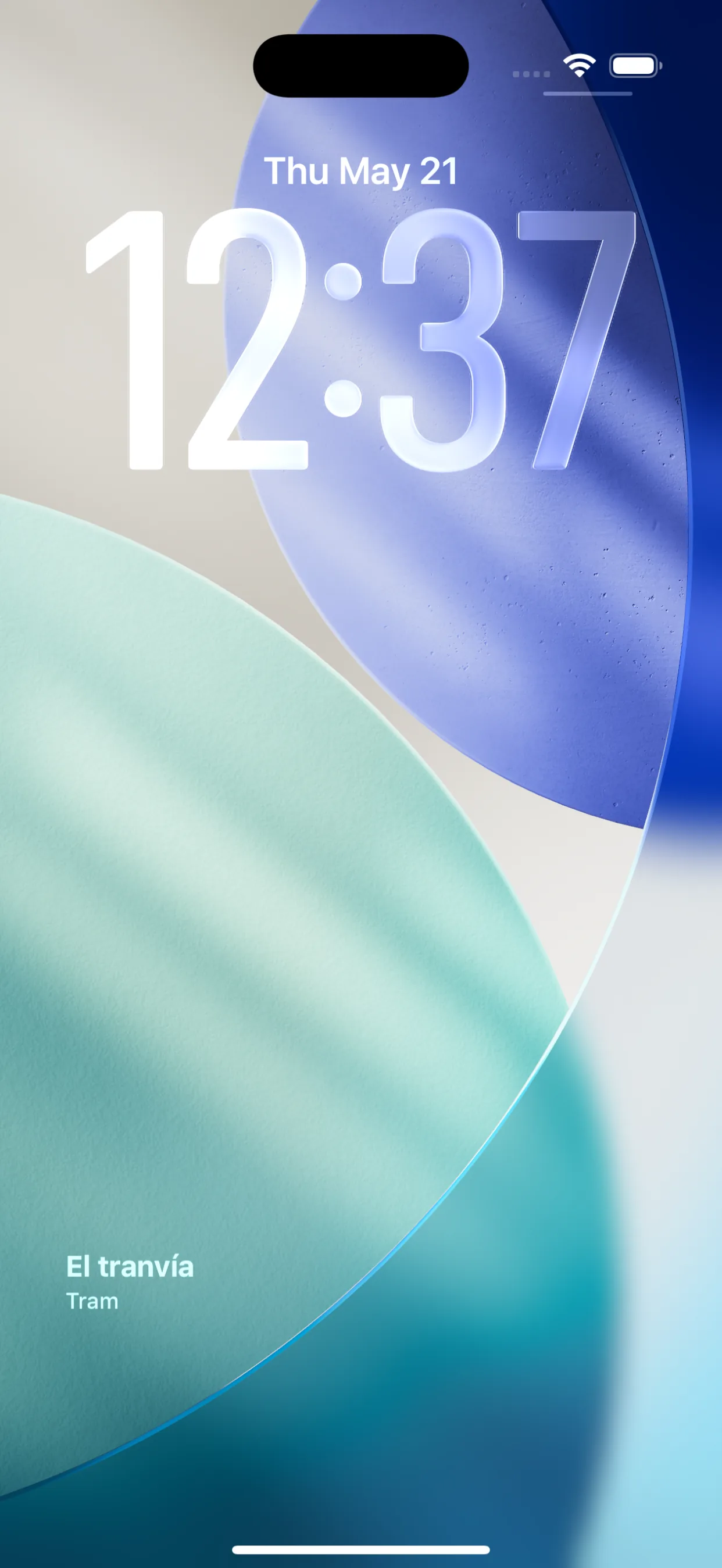
You need iOS 16 or later and an app that ships a lock screen widget. Then:
- Long-press your lock screen (with the phone unlocked) until the customize view appears.
- Tap Customize, then choose the Lock Screen preview.
- Tap the widget area - the row under the clock.
- Find your word app in the list and tap its widget. With Wordify it's the rectangular widget that shows the word and its translation.
- Swipe down to close the widget list, then tap Done in the top corner.
That's it. The word now lives under your clock, and it updates on its own.
If you want the same thing in a bigger format, add the home screen version too: long-press any empty spot on the home screen, tap Edit then Add Widget, and pick the size you want. I covered every size and the troubleshooting details in the full vocabulary widget guide.
Android: lock screen widgets are finally coming back
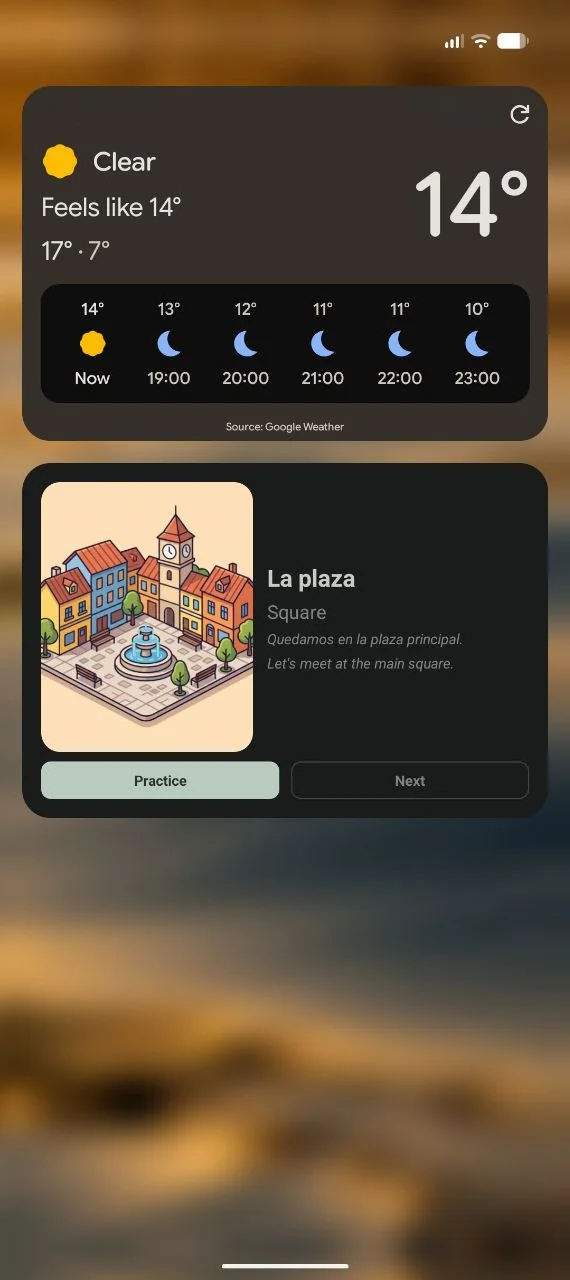
For a decade the honest answer here was no: Android removed general lock screen widgets back in Android 5. That's changing. Android 17 brings lock screen widgets back, currently rolling out in beta on Pixel phones with the Pixel launcher, and Wordify's widget already works there - I'm running it on a Pixel with Android 17 right now, word, translation, and example sentence sitting under the weather on the lock screen. Once lock screen widgets are enabled on your device, you add it from the same widget picker as a home screen widget.
Most Android phones in 2026 don't have lock screen widgets yet, though, so for everyone else the workaround remains - and it's better than it sounds: a silent persistent notification. Wordify shows your current word and its translation as a quiet notification - no sound, no vibration - which appears both in the notification shade and on your lock screen on every Android version. It updates automatically as words rotate, and you can mark a word as learned right from the notification without unlocking the phone.
For the home screen, Android widgets work everywhere: long-press an empty spot, tap Widgets, find your word app, and drag the widget where you want it. Exact wording varies by launcher (Samsung, Xiaomi, and Pixel each phrase it slightly differently), but the long-press-then-Widgets pattern is universal.
One word a day, or words you're actually learning?
Here's the thing worth thinking about before you pick an app. The classic word-of-the-day formula - one impressive dictionary word every 24 hours - is fun, but it has a flaw: the words are random. Petrichor and sesquipedalian make good trivia; they don't make you conversational in Spanish.
The upgrade is a widget that shows words you're learning, in the language you're learning, and rotates through them during the day. That changes the math completely: instead of 365 random English words a year, you get repeated exposure to your own study list, which is exactly the repetition vocabulary needs to stick. In Wordify the widget pulls from the words you're learning and rotates on a schedule you choose: hourly or slower on the free tier, and with Premium as often as every 5 minutes on Android or every 15 minutes on iPhone. It shows the translation, the bigger home screen sizes add a picture (and on Android, an example sentence), and on iPhone a tap on Next brings up another word without opening the app.
Whichever app you choose, look for three things: it works offline (a widget that needs network will eventually show you a blank), the rotation speed is adjustable, and the lock screen version actually exists rather than just a home screen widget with "lock screen" in the marketing.
Two minutes, then it compounds
The setup above takes about two minutes. After that, the math works quietly in your favor: fifty-plus glances at your phone a day, each one a tiny review, no effort spent. It's the closest thing vocabulary learning has to passive income.
Quick answers
Can I put a word of the day on my iPhone lock screen?
Yes, on iOS 16 and later. Install an app with a lock screen widget, long-press your lock screen, tap Customize, select the widget area under the clock, and add the app's word widget. The whole thing takes under two minutes.
Can Android show a word of the day on the lock screen?
Starting with Android 17, yes - lock screen widgets are returning, currently in beta on Pixel phones, and Wordify's widget already works there. On every other Android version the practical answer is a silent persistent notification, which shows your current word on the lock screen and in the notification shade.
How often does a word of the day widget change?
A classic word-of-the-day widget changes once every 24 hours. Learning-focused widgets can rotate faster - Wordify's changes as often as every 5 minutes on Android or every 15 minutes on iPhone with Premium, and hourly on the free tier, because seeing a dozen words you're actually studying beats seeing one random word.
See also:
Try the app
Vocabulary that comes to you
Through home screen widgets, lock screen widgets, and notifications. 7-day free trial. No account needed.